GoHighLevel Profile Settings
How to Change Your Availability in GoHighLevel
Quick summary: Your availability controls when appointments can be booked with you. If your booking calendar is showing the wrong times, you may need to update your availability from the My Profile section of your GoHighLevel account.
When to Update Your Availability
Update your availability when your regular working hours change, when you want to adjust which days you accept appointments, or when your booking calendar is showing times that no longer match your schedule.
Common Examples
- Changing your normal start or end time.
- Adding or removing available days.
- Updating your schedule after a role or team change.
- Adjusting your availability so clients can only book during approved hours.
- Fixing a booking calendar that is showing too many or too few available time slots.
How to Change Your Availability
Open Settings
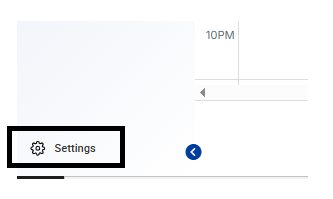
From the CRM, select Settings in the bottom-left corner.
Select My Profile
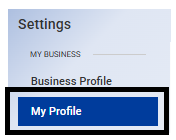
In Settings, select My Profile.
Find Schedules
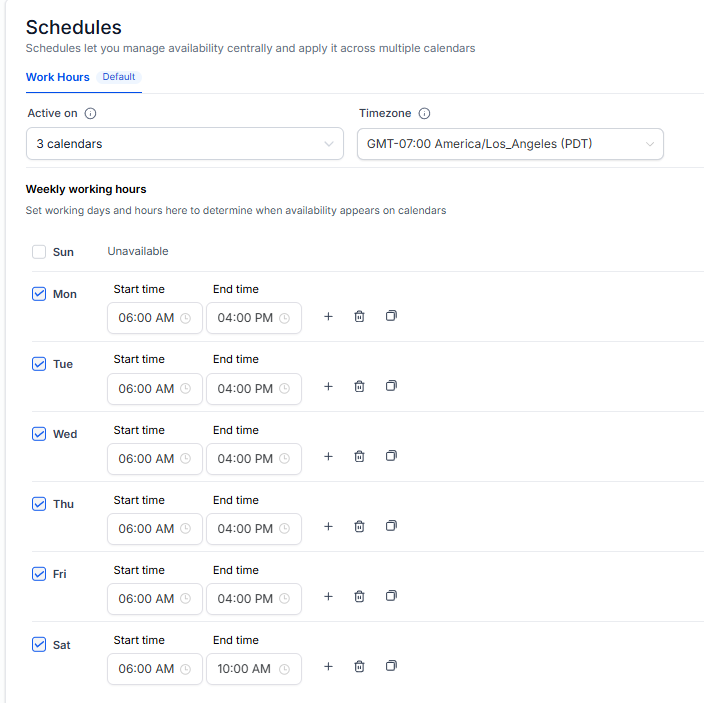
Scroll toward the bottom of the My Profile page and find the Schedules section.
Confirm the Schedule Is Active on the Correct Calendars
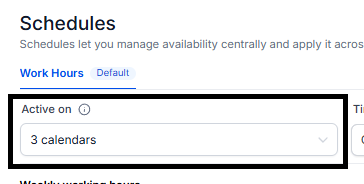
Make sure your schedule is active on the calendars where you want this availability to apply. If the schedule is not active on the correct calendar, the booking page may not use the availability you set here.
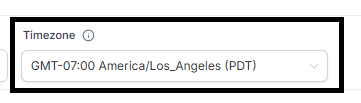
Double-Check the Time Zone
Confirm the schedule is using the correct Time Zone. If the time zone is incorrect, your booking page may show appointment times at the wrong hour.
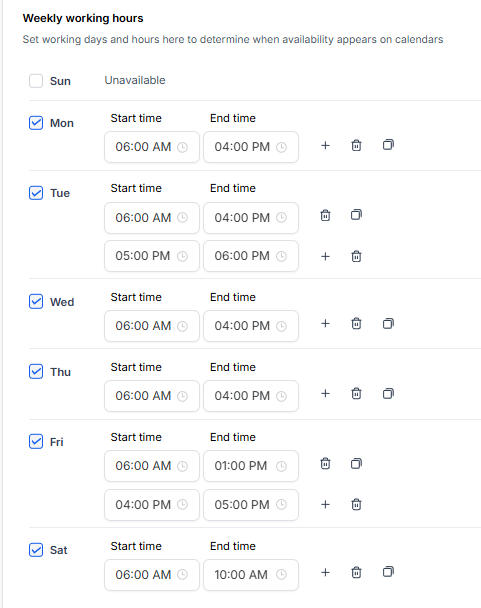
Set Your Availability
Set the days and times you want to be available for appointments. You can also add breaks if you need certain times within your available window to be unavailable.
Tip: Double-check AM/PM before saving. A small time setting mistake can make the booking calendar show the wrong appointment times.
Update Availability
When everything looks correct, select Update Availability in the bottom-right corner to save your changes.
Confirm the Booking Page
Open your booking page and confirm the correct days and times are available. This is the best way to verify that your availability is showing correctly to clients.
What Happens Next
Once your profile availability is saved, GoHighLevel should use those settings when showing available appointment times connected to your user profile or if the AI bot schedules your appointments for you.
If Your Availability Still Looks Wrong
If the booking page still does not show the correct times, check the following:
- Make sure you selected Update Availability after making changes.
- Confirm the schedule is active on the correct calendars.
- Confirm the correct user is assigned to the calendar or booking page.
- Check the calendar or booking page time zone.
- Refresh the booking page after saving your changes.
- Contact support if the availability still does not update after checking these items.
Note: Updating availability in My Profile changes the times connected to your user profile. If a team calendar, round-robin calendar, class calendar, or separate calendar setting is being used, additional calendar settings may also affect what clients see.
Was this article helpful?
That’s Great!
Thank you for your feedback
Sorry! We couldn't be helpful
Thank you for your feedback
Feedback sent
We appreciate your effort and will try to fix the article