Calendar
How to Block Off Time on Your Calendar
Quick summary: Blocking off time prevents new appointments from being scheduled during specific times when you are unavailable, such as lunch breaks, meetings, personal appointments, vacations, or out-of-office time.
When to Use Blocked Time
Use blocked time when you need to make recurring unavailable windows or planned time away unavailable for booking. This is most helpful for repeating breaks, standing meetings, office closures, vacations, holidays, or other time that should not be open for new appointments.
Common Reasons to Block Off Time
- Recurring lunch breaks or recurring daily breaks.
- Standing weekly or monthly meetings.
- Regular admin time, training time, or team huddles.
- Vacation or out-of-office days.
- Holidays, office closures, or special unavailable dates.
- Any repeating time window that should not be available on your booking calendar.
How to Block Off Time
Open Your Calendar
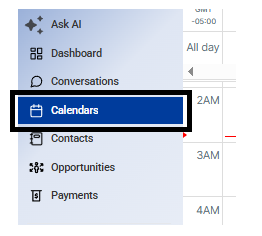
From the CRM home screen, select Calendars.
Click New
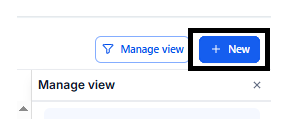
In the top-right corner of the Calendars page, select New.
Switch to Blocked Off Time
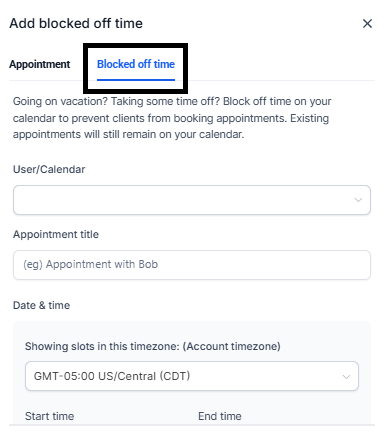
In the new calendar item window, switch the type to Blocked Off Time.
Confirm the User and Name the Reason
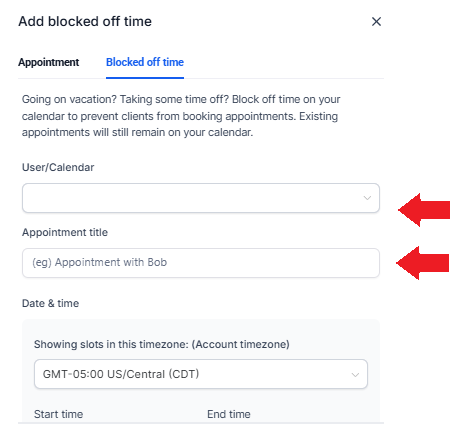
Make sure the User is set to yourself. Then enter a clear name for the blocked off time, such as Vacation, Team Meeting, Lunch Break, or Out of Office.
Select the Time Zone and Time Range
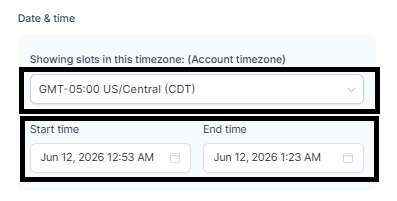
Select the correct Time Zone. Then choose the Start Date/Time and End Date/Time for the blocked off time.
Save the Blocked Off Time
Review the details, then select Save. The blocked off time should now appear on your calendar and prevent new bookings during that window.
What Happens Next
Once the blocked time is saved, the calendar should prevent new appointments from being booked during that time window. Existing appointments are usually not removed automatically, so review your calendar if you already had appointments scheduled.
Linked Calendar Note
If you have an outside calendar linked to your GoHighLevel account, appointments booked on that linked calendar should naturally block those time slots from being double-booked in GoHighLevel, as long as the calendar connection and availability settings are set up correctly.
If the Time Still Shows as Available
If the blocked time still appears open on the booking page, check the following:
- Make sure the blocked time was added to the correct calendar.
- Confirm the date, start time, end time, and time zone are correct.
- Refresh the booking page after saving the blocked time.
- Check whether the booking page uses a different calendar or team calendar.
- If using a linked calendar, confirm the calendar is still connected and included in conflict checking.
- Contact support if the blocked time still does not apply after checking these items.
Note: Blocking off time only prevents new appointments from being booked during that window. It does not usually cancel or move appointments that were already scheduled.
Was this article helpful?
That’s Great!
Thank you for your feedback
Sorry! We couldn't be helpful
Thank you for your feedback
Feedback sent
We appreciate your effort and will try to fix the article